
What is NotebookLM? A Basic Guide to Using Google NotebookLM
Have you ever heard of NotebookLM? This new smart note-taking tool from Google is attracting a lot of attention due to its powerful ability to support learning, research, and work. So, what is NotebookLM and how can it help you? This article provides a detailed guide to Google NotebookLM, from its basic definition and standout features to step-by-step usage instructions, helping you quickly master this powerful tool..
I. What is NotebookLM??
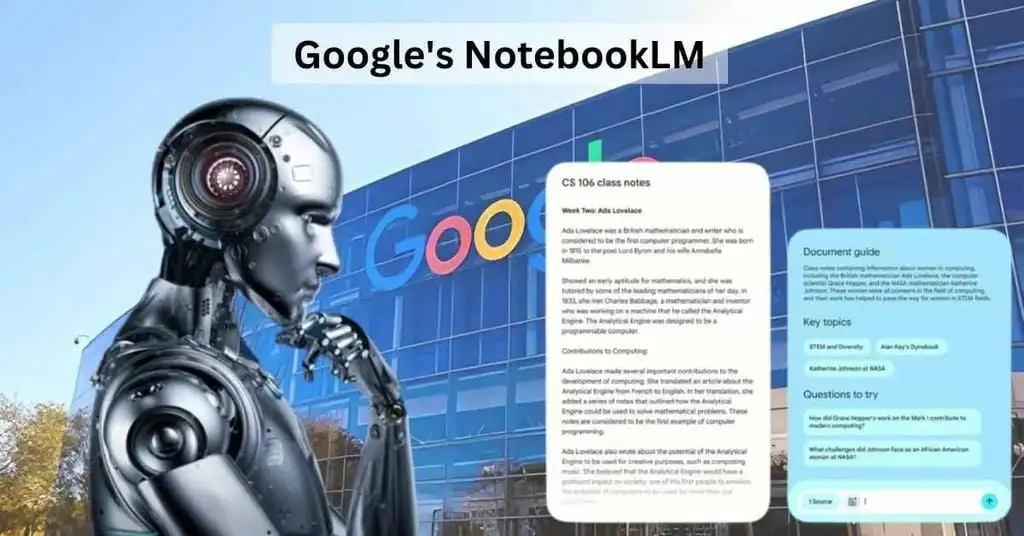
NotebookLM, which stands for Notebook Language Model, is a smart note-taking tool developed by Google that integrates the power of a Large Language Model (LLM). Rather than just a standard note-taking app, it acts as a true personal research assistant, capable of analyzing, synthesizing, summarizing, and suggesting information from the documents you provide.
Simply put, NotebookLM functions like a “second brain,” helping you “digest” and “master” large amounts of information quickly and effectively. Instead of re-reading dozens of pages, NotebookLM helps you “capture” main ideas, “link” important concepts, and “paint” a big-picture view of your research topic.
II. Key Features of Google NotebookLM:
NotebookLM has many powerful features that make it an extremely effective tool for research and document management:
1. Source Overview:
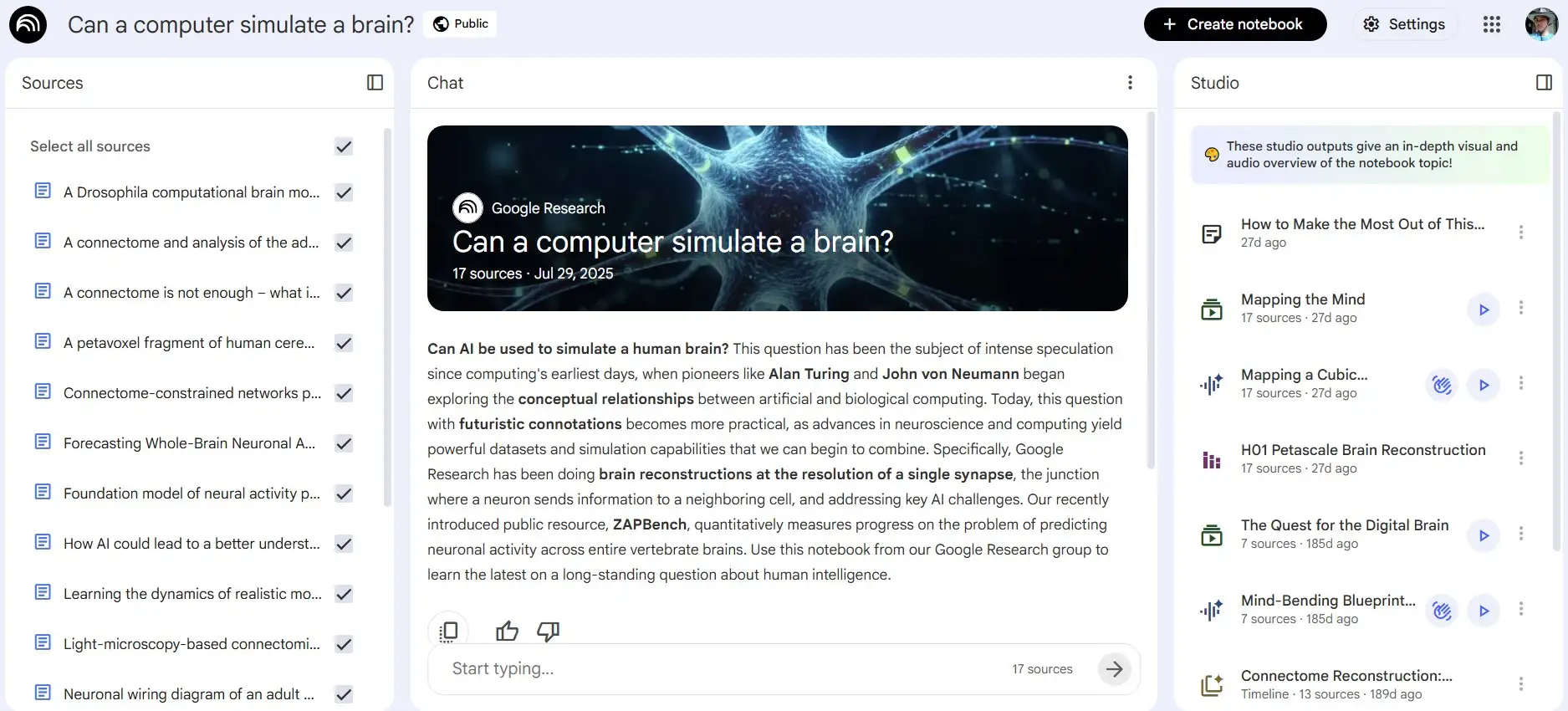
The Document Overview feature of NotebookLM is an ideal starting point for exploring any material you upload. Like an intelligent executive summary, it quickly provides a high-level view of the core content, so you don’t have to “dive into” every page of text to search for the main information.
NotebookLM automatically identifies the most important topics discussed in the document and highlights key excerpts that serve as the “highlights” of the content. As a result, you can save a significant amount of time during the initial screening and orientation process, quickly deciding which parts of the document should be prioritized for deeper study.
2. Ask Questions About the Document:
Imagine being able to chat directly with your document — that’s exactly what NotebookLM’s “Ask” feature provides. You can ask questions naturally, as if you were consulting a subject-matter expert, and NotebookLM uses artificial intelligence to find the most accurate answers. What makes this especially powerful is that every answer is anchored with direct citations from the original source material, allowing you to easily verify the information and fully understand its context.
This feature not only helps you quickly locate specific information but also clarifies ambiguous points, transforming the research process into something more interactive and effective than ever before.
3. Smart Notes:
NotebookLM is not just a place to read documents — it’s a space for building your own knowledge through the Smart Notes feature. You can easily highlight important passages and add personal notes, thoughts, or reflections.
What’s even better is that you can organize these notes by topic, create links between them, or connect them to different parts of the document. This feature goes beyond simple note-taking — it helps transform passive information from the document into structured, active knowledge that truly belongs to you.
4. Generate Outline:
When starting a writing project or building the structure for a presentation, NotebookLM’s Generate Outline feature becomes a powerful assistant. Based on the materials you provide, NotebookLM automatically analyzes the content and suggests a preliminary outline, giving you a logical and coherent framework for your writing.
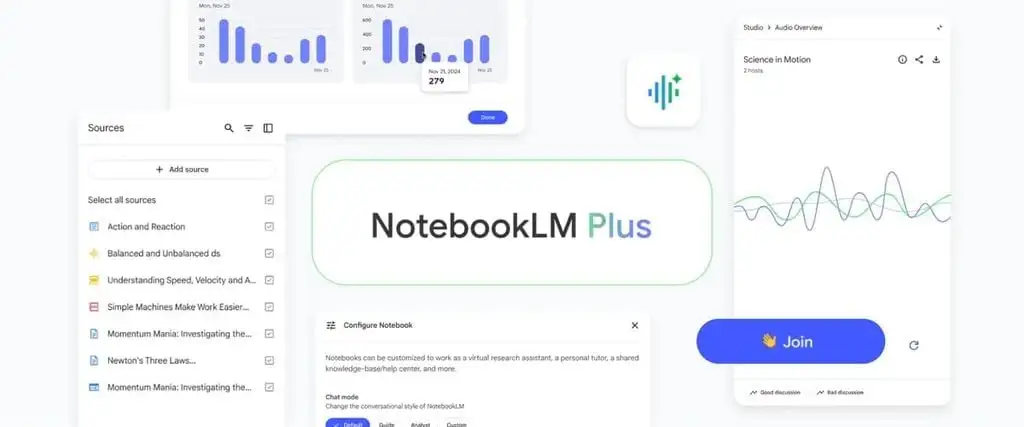
The outline is typically presented in a hierarchical structure, from major sections down to smaller headings and subheadings, reflecting the main themes and ideas discussed in the document. You can fully customize and refine this outline to match your goals and writing style, making the process of structuring your work significantly faster and more efficient.
5. Projects:
Each Project functions like a separate “folder” where you can gather all documents, notes, and outlines related to a specific topic or task. You can create as many Projects as you like and easily switch between them to work on different subjects without worrying about information overload.
The search and sorting features further help you manage your growing list of projects, ensuring everything stays organized and easily accessible.
6. Flexible Document Upload:
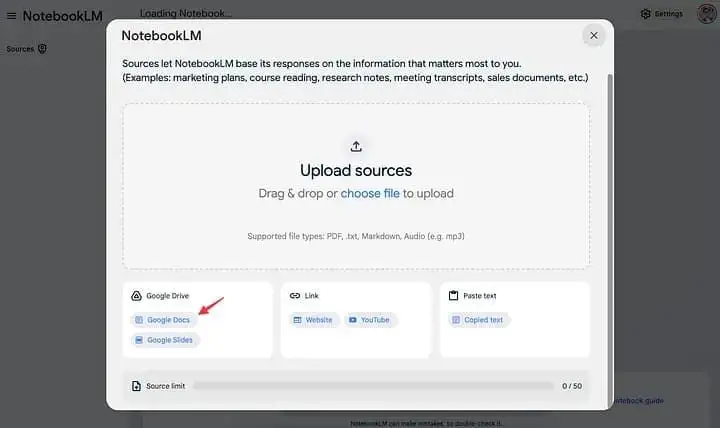
NotebookLM understands that information can come from various sources, so the Flexible Document Upload feature is designed to provide maximum versatility. You can upload standard text files such as .docx, .pdf, and .txt, as well as integrate directly with Google Docs and even import transcripts from YouTube videos.
7. Source Citation:
Transparency and reliability are essential in research and professional work, and NotebookLM places special emphasis on this through its Source Citation feature. Whenever NotebookLM provides an answer to your question or when you reference information in your notes, the tool carefully cites the exact original text passage as the basis.
III. Step-by-Step Guide to Using Google NotebookLM:
To help you quickly master this powerful tool, here is a detailed step-by-step guide to using Google NotebookLM:
Step 1: Access NotebookLM
You can access NotebookLM through the official Google link at: https://notebooklm.google.
Make sure you are logged into your Google account in order to use NotebookLM.
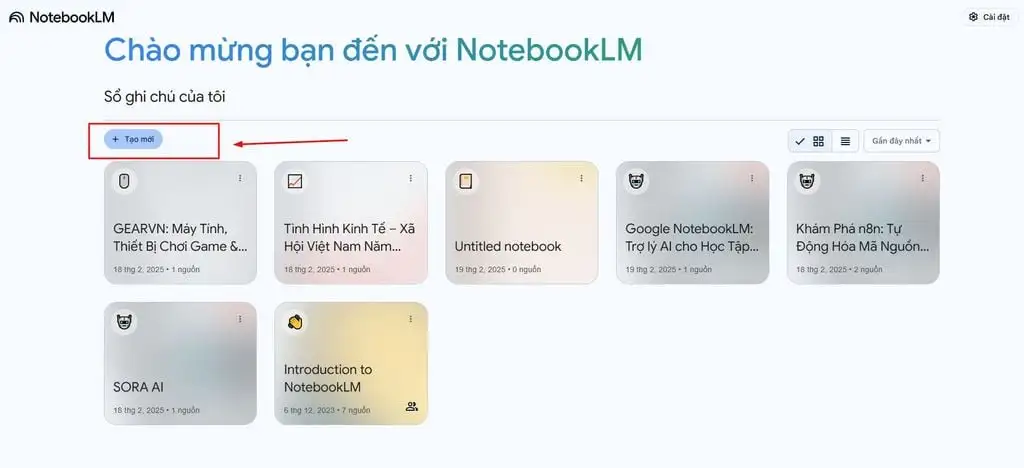
Step 2: Create a New Project
After successfully accessing the platform, you will see the main NotebookLM interface. To get started, click on the option to create a new Project for the topic or task you want to research. Give your Project a clear and memorable name to help manage different projects effectively.
Step 3: Upload Documents to NotebookLM
Inside your newly created Project, you will see the “Add sources” option. Click on it to upload materials related to your project. NotebookLM supports multiple upload methods, including:
- Upload files: Directly upload text files from your computer.
- Google Docs: Import documents from your Google Docs.
- YouTube video: Paste a YouTube video link, and NotebookLM will automatically extract the video transcript.
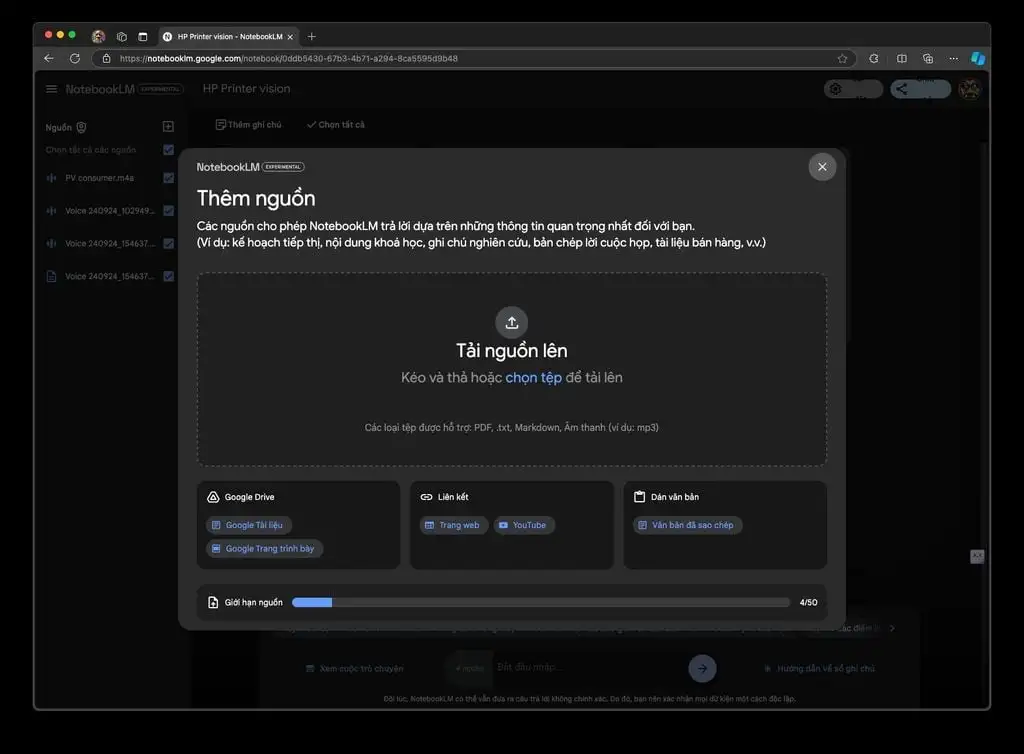
You can upload multiple documents at once for NotebookLM to analyze and synthesize information.
Step 4: Explore NotebookLM’s Main Features
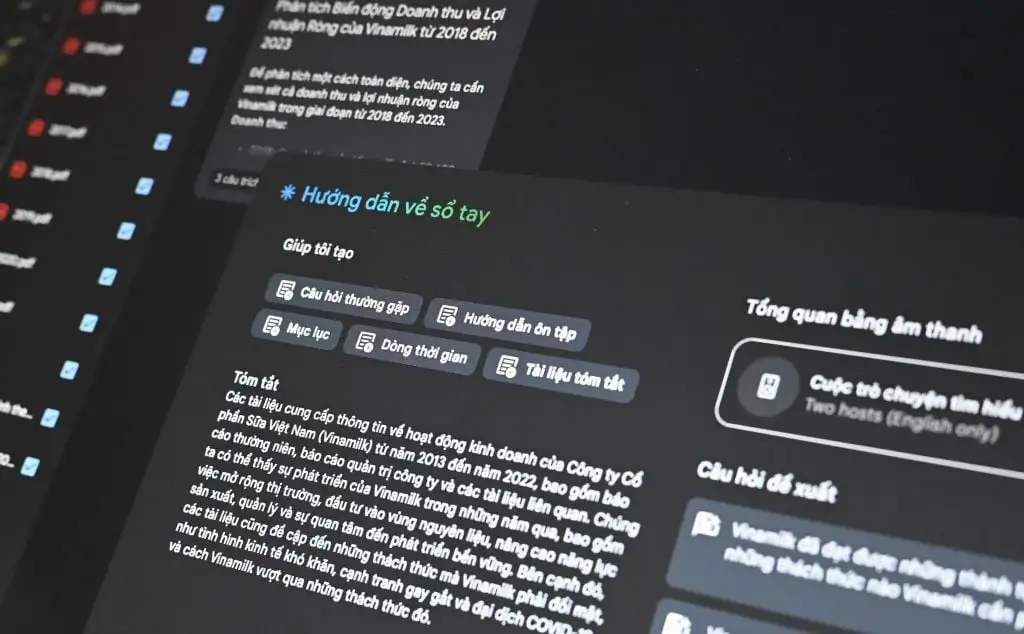
- After uploading your documents, click on each one to view the Source Overview. Here, you will see a summary of the main content, key topics, and highlighted excerpts from the document.
- Use the “Ask a question” bar at the bottom of the interface to ask questions about the document. Try questions such as: “What is the main idea of this document?” or “What arguments does the author present?” or “What important concepts are mentioned?”. NotebookLM will answer based on the document’s content, along with source citations.
Step 5: Organize and Manage Projects
NotebookLM allows you to create multiple Projects to manage different research topics separately. You can sort Projects by name, creation date, or customize the organization as you prefer. The powerful search feature helps you quickly find previously created Projects, documents, or notes.
Tips for Using NotebookLM Effectively for Work and Study
To truly master and maximize the potential of Google NotebookLM, it’s not enough to understand its features — you should also apply useful tips and best practices. Below are detailed suggestions to help you improve your effectiveness:
- Start with small projects: Get familiar with NotebookLM by experimenting with small projects and short documents to explore features and workflows.
- Upload high-quality documents: The effectiveness of NotebookLM depends on the quality of the materials you provide. Prioritize documents with clear sources, reliable content, and direct relevance to your research topic.
- Combine features: Leverage the combined power of NotebookLM’s features. Use “Source Overview” to quickly grasp content, “Ask” to find specific information, “Notes” to capture and organize ideas, and “Generate Outline” to create structured writing frameworks.
- Practice regularly: The more frequently you use NotebookLM, the more proficient you will become, and the more ways you will discover to apply it in your work and studies.
- Stay updated: NotebookLM is continuously evolving, and Google may introduce new features in the future. Keep up with updates to ensure you don’t miss out on useful improvements.
IV. Conclusion:
It is clear that with its powerful capabilities in analysis, synthesis, and intelligent suggestions, Google NotebookLM is poised to become an indispensable AI “assistant” for anyone looking to enhance productivity, optimize workflows, and unlock their creative potential. Start exploring NotebookLM today and experience the difference this tool can make.
From IT Department
Comments (0)
Newest